




It's a Swift Library to support Drop Down Menu in iOS
Watch Video on :



To run the example project, clone the repo, and run pod install from the Example directory first.
- Simple UITextField Extension And simple to use , We can Access all properties of UITextField
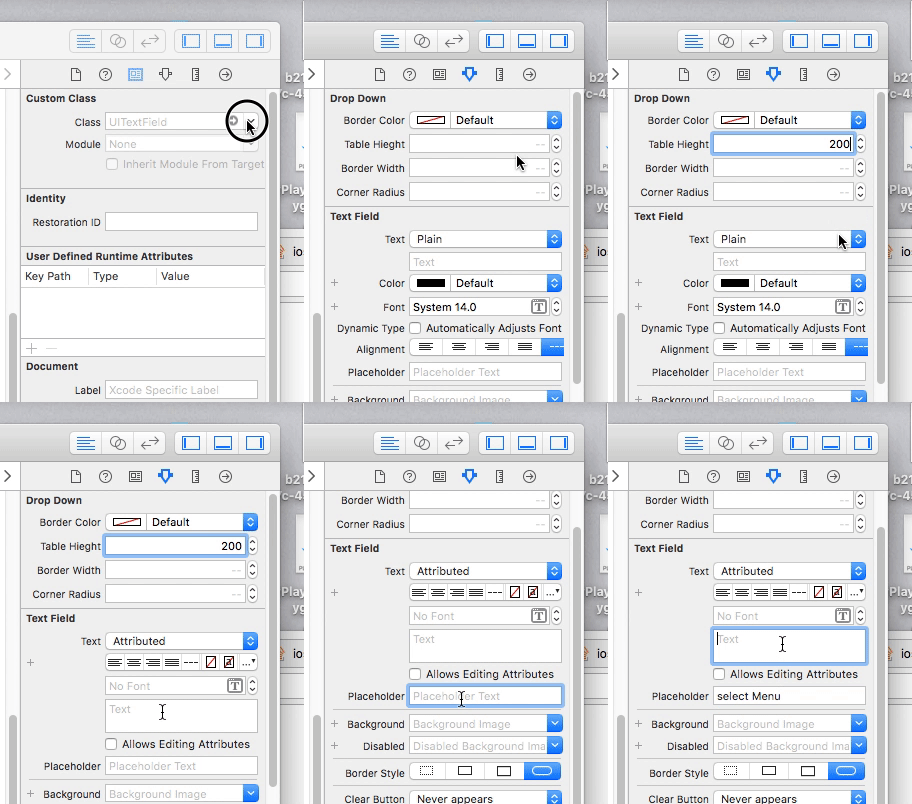
- DropDown Search can be enabled or disabled
- Change background color of the List and the selected color as well
- Change the maximum height of the List and the height of each Row

Use CocoaPods. iOSDropDown is available through CocoaPods. To install it, simply add the following line to your Podfile:
- Add
pod 'iOSDropDown'to your Podfile. - Install the pod(s) by running
pod install. - Add
iOSDropDown.frameworkin Build Phases > Link Binary with Libraries - Add
import iOSDropDownin the .swift files where you want to use it
Use Carthage.
- Create a file name
Cartfile. - Add the line
github "jriosdev/iOSDropDown". - Run
carthage update. - Drag the built
iOSDropDown.frameworkinto your Xcode project.
Just clone and add the following Swift files to your project:
- iOSDropDown.swfit
Simply add UITextField to Your ViewCOntroller And Connect @IBOutlet - DropDown Class

@IBOutlet weak var dropDown : DropDown!
// The list of array to display. Can be changed dynamically
dropDown.optionArray = ["Option 1", "Option 2", "Option 3"]
//Its Id Values and its optional
dropDown.optionIds = [1,23,54,22]
// Image Array its optional
dropDown.ImageArray = [👩🏻🦳,🙊,🥞]
// The the Closure returns Selected Index and String
dropDown.didSelect{(selectedText , index ,id) in
self.valueLabel.text = "Selected String: \(selectedText) \n index: \(index)"
}let dropDown = DropDown(frame: CGRect(x: 110, y: 140, width: 200, height: 30)) // set frame
// The list of array to display. Can be changed dynamically
dropDown.optionArray = ["Option 1", "Option 2", "Option 3"]
// Its Id Values and its optional
dropDown.optionIds = [1,23,54,22]
// Image Array its optional
dropDown.ImageArray = [👩🏻🦳,🙊,🥞]
// The the Closure returns Selected Index and String
dropDown.didSelect{(selectedText , index ,id) in
self.valueLabel.text = "Selected String: \(selectedText) \n index: \(index)"
}
}Actions
 dropDown.showList()  // To show the Drop Down Menu
 dropDown.hideList() // To hide the Drop Down Menu
Closures
 listWillAppear() {
  //You can Do anything when iOS DropDown willAppear
 }

listDidAppear() {
    //You can Do anything when iOS DropDown listDidAppear
}

listWillDisappear() {
  //You can Do anything when iOS DropDown listWillDisappear
}

 listDidDisappear() {
  //You can Do anything when iOS DropDown listDidDisappear
}You can customizes these properties of the drop down:
isSearchEnabled: You can Enable or Disable on DropDown .Default value IstruehideOptionsWhenSelect: This option to hide the list when click option one item. Default value istrueselectedRowColor: Color of selected Row item in DropDown Default value is.cyanrowBackgroundColor: Color of DropDown Default value is.whitelistHeight: The maximum Height of of List. Default value is150rowHeight: The Height of of List in the List. Default value is30selectedIndex:For preSelection of any of item in listarrowSize: The Size of arrow . Default value is15arrowColor: The Color of arrow . Default value is.blackcheckMarkEnabled: The check Mark Enabled for selection of Row. Default value istruetextColor: You can change DropDown selected Text ColorsemanticContentAttribute: Semantic attribute for RTL or LTRAll Other TextField Properties are available with DropDownlikealignment,font,textColor,semanticContentAttribute...etc
1.After Update the pod just do clean your buld folder
      Product > Clean Build Folder .

Jishnu Raj T, jriosdev@gmail.com

iOSDropDown is available under the MIT license. See the LICENSE file for more info.